
(B2) Embed Whitelisted Websites helps teachers find approved external websites that can be embedded in SLS modules. Instead of storing a large copied HTML dump inside the article, this cleaned version points to the official SLS guide and approved-website sources so the information stays easier to read and maintain.
Official SLS References
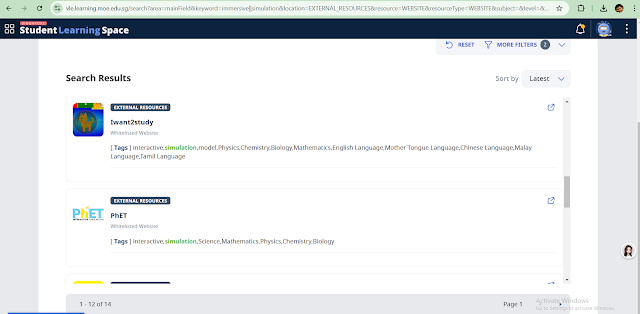 |
| Open the approved websites search |
How To Embed a Whitelisted Website in SLS
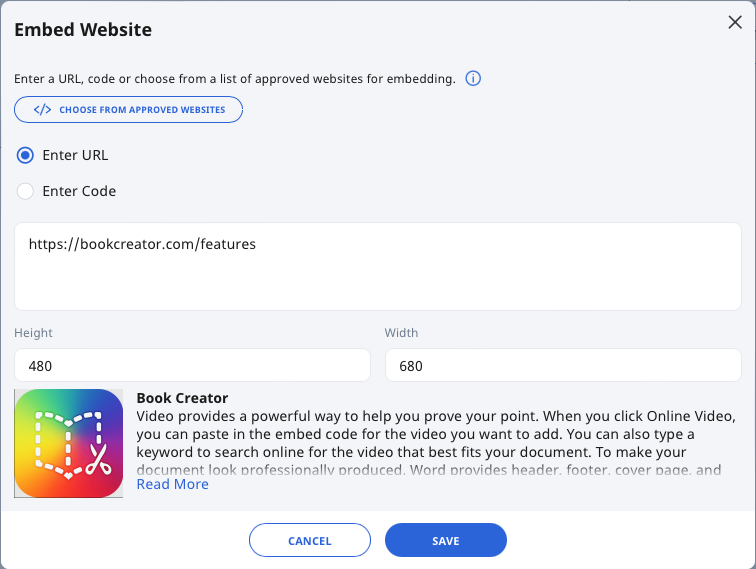
- In the Module Editor, open Text/Media from the Component Bar and choose Website.
- In the embed panel, choose either Enter URL or Enter Code.
- Use the approved website search or the teacher guide above to confirm that the site is whitelisted.
- Alternatively, choose Choose From Approved Websites to select a supported website card directly.
- Adjust the display width and height if needed, then click Save.
Note: The official SLS pages are the best source for the latest whitelist status. If the approved list changes over time, the links above will stay more accurate than a pasted snapshot inside this article.
Reference
https://weelookang.blogspot.com/2025/03/b2-embed-whitelisted-websites-with.html